AI photo editing prompts: examples you can copy and adapt
Name the change, locate the target, describe the replacement and protect what matters. Start with a useful example, then make it yours.
By AIPGENPublished Updated 9 min readAIPGEN · Photo editing
Quick answer
A clear AI photo editing prompt has four parts: the change, the target, the replacement and the details to retain. For example: remove the red cup at the lower right, continue the wood grain and keep the person and plate recognizable.
Copy a focused prompt, then adapt it
Start with one small change in a photograph you already have. The example below identifies an object, its location, the surface to reconstruct and the details that matter. Replace those details with what is visible in your own source; a copied prompt works as a brief, not a guaranteed recipe.
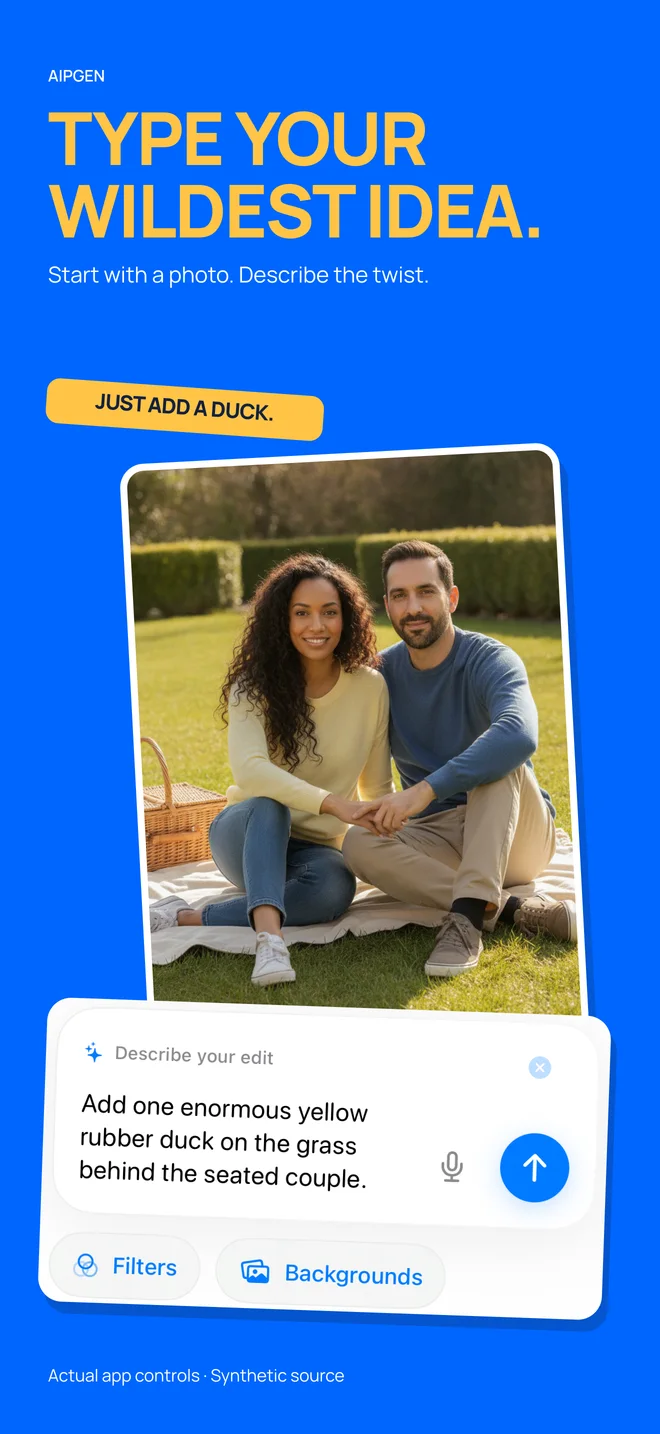
AIPGEN’s existing App Store artwork illustrates the prompt-based workflow. It is a promotional example, not a test result for the cup-removal prompt.
A prompt to try
Remove the red cup at the lower right of the table. Continue the visible wood grain naturally through that space. Keep the person’s face, hands, clothes and the plate recognizable. Do not add another object.
Try one clear photo prompt in AIPGEN
Copy the example, replace the target and surface details, then compare your edit with the original. Keep the first attempt focused on one change.
Free-edit allowances vary by platform. Check the current allowance, pricing and paid options in your app.
Start with the change you can point to
The most useful AI photo editing prompts describe a visible change. Instead of asking for a photo to look better, identify what is distracting or missing: a bin beside a bench, an empty wall behind a portrait, or a background that clashes with a product. That turns an opinion into an instruction you can evaluate.
A strong first prompt often has four parts: action, target, replacement, and preservation. For example, remove the bin on the right, continue the pavement behind it, and keep the person unchanged. Each part answers a different question. The action sets the job; the target sets its scope; the replacement explains what belongs there; preservation names what matters most.
You do not need a long paragraph of photographic vocabulary. Extra adjectives can compete with the actual task. Before writing, finish the sentence: this edit succeeds if I can see this one change. If you cannot finish that sentence, inspect the image again. The guide to editing photos with words explains the basic workflow in AIPGEN.
Name a target the image actually contains
A target needs an identity and, when there could be confusion, a location. The person in a red jacket near the left edge is more precise than the person. A chair beside the window is easier to distinguish from the chair nearest the camera. Use details already visible in the image instead of introducing a description the system has to infer.
Relative positions are useful, but they should match the viewer's perspective. Left usually means the left side of the image, not the subject's left hand. If that could be ambiguous, add a landmark: remove the cup next to the laptop on the image's right side. A small clarification here is more valuable than another sentence describing the mood.
When the target overlaps an important subject, say so in your own planning. Removing a person behind someone's hair requires inventing the obscured background and preserving a delicate edge. A good prompt can communicate your intent, but it cannot reveal hidden pixels. Consider whether a crop or a different original photo would achieve the same purpose with less reconstruction.
For a person in the background, clothing plus location is more precise than “remove him.” Follow the people-removal guide for iPhone and Android to check overlap, describe the empty scene and protect the foreground subject.
A prompt to try
Remove the blue shopping bag on the floor beside the chair at the right edge. Continue the existing wooden floor pattern. Keep the chair, person, and lighting unchanged.
Describe the replacement instead of leaving a hole
Object removal is also an instruction about what should replace the object. In a simple image, nearby texture may make that obvious. In a crowded image, the removed area might contain parts of a wall, a table, and a shadow. Naming those surfaces reduces ambiguity in the request and helps you decide whether the result makes visual sense.
For a background change, choose a coherent setting with only the details needed for the composition. A softly lit beige studio wall behind a seated portrait gives a clearer direction than a beautiful luxury background. The second request invites new furniture, dramatic lighting, and ornaments that may make the subject less believable.
Be careful with details that the photo cannot support. Asking to reveal the exact view behind a parked car implies information the original never captured. Ask for a plausible continuation if that is appropriate for your creative use, and keep the original. For practical removal examples, see how to remove objects from photos.
A prompt to try
Replace the cluttered room behind the subject with a plain warm-gray wall. Keep the camera angle and the soft light coming from the left. Preserve the subject’s face, hair, clothing, and pose.
Choose two or three things to preserve
Preservation instructions are priorities, not guarantees. They tell the editor what you consider essential, then give you a checklist for comparing the result. For a portrait, those essentials may be identity, expression, and hair. For a product, they may be the label, shape, and color. For a landscape, they may be the horizon and recognizable buildings.
Avoid a preservation paragraph that lists every pixel in the photograph. It makes the request harder to scan and can hide the actual edit. Pick the attributes that would make the output unusable if changed. A headshot with a cleaner background is not a success if the person's eyes or distinctive facial features no longer look like them.
Some instructions conflict. Preserve the exact lighting and turn a midday scene into a nighttime city do not naturally fit together. Resolve that conflict before generating. You could retain the daytime subject and choose an overcast urban background, or accept that the transformation will also change how the subject is lit. Clear choices produce clearer evaluation criteria.
Separate technical realism from creative style
Realism depends on relationships. Light should come from a plausible direction; objects should fit the camera angle; shadows should connect them to surfaces. Style describes a creative treatment such as a muted palette or a nostalgic mood. Both can belong in a prompt, but technical compatibility should come first when the goal is a believable photograph.
For example, a warm café background may work with a portrait lit by a large window. A harshly lit beach background is a harder match if the face is softly lit from all directions. Adding realistic to the prompt does not remove that mismatch. Specify a background whose light already suits the source, then add a restrained color direction.
When you want an illustration or a playful composition, you can deliberately relax realism. Still define what should remain recognizable. A storybook scene can preserve a pet's markings, while a professional portrait should normally preserve the person's features. The right prompt depends on the purpose of the final image, not on using the same fashionable style words every time.
A prompt to try
Use a quiet café background with a large window on the left, matching the soft light already on the face. Keep the person recognizable and the clothing unchanged. Use restrained warm colors without orange skin tones.
Revise one part after each result
Treat the first result as evidence about the request. Compare it with your success sentence and identify the most important mismatch. If the target was not removed, improve the target description. If the removed area looks smeared, explain the surface that should continue through it. If the subject changed, simplify the transformation and strengthen the preservation priorities.
A revision that changes the setting, lighting, pose, and clothing at once tells you little about what fixed the problem. Change one meaningful instruction at a time when practical. Save promising versions separately, and return to the original if accumulated changes start drifting away from the subject. Repeatedly editing a flawed output may carry its invented details forward.
Keep a small note with the source photo, prompt, and reason for accepting or rejecting a result. You do not need a formal spreadsheet. Two sentences can help: background fits, but the glasses changed; try the same setting with fewer style instructions. Over time, that record becomes more useful than a large collection of prompts you have never evaluated.
Turn a vague request into an editable brief
Consider a hypothetical photo of a friend at an outdoor café. Make this look elegant could change the clothes, face, furniture, and setting. If the actual problem is a bright bin behind the chair, the useful brief is much smaller: remove the bin, continue the wall, and preserve the friend and table.
If the first result removes the bin but replaces the wall with greenery, the next revision should name the wall material and color. It does not need a new aesthetic direction. This example shows why identifying the problem before prompting makes revisions easier: you can tell whether the failure concerns the target, the replacement, or something that should have stayed the same.
Use a review checklist that matches the image
View the result first at the size people will actually see, then inspect the edited area more closely. At ordinary size, check whether the image's focus improved. At a closer view, inspect edges, repeated texture, hands, text, and small details around the change. A result can look impressive as a thumbnail and still contain a broken chair leg or altered product label.
Compare the untouched parts as carefully as the changed area. Background editing can affect hair, clothing edges, or reflections. Removing an object near a window may produce a mismatch between the room and the glass. If the source has a mirror, inspect it separately rather than assuming the reflection was handled consistently.
For images that represent a person, place, or product, ask whether the edit changes the meaning. A tidy workspace is different from an invented credential on the wall. A clean product background is different from removing a flaw buyers need to see. Stop when the edit meets the intended purpose; more polish is not automatically more accurate.
Check the exact object or region named in the prompt.
Inspect the boundary between edited and preserved areas.
Compare faces, labels, patterns, and identifying details with the original.
Decide whether the resulting image needs to be labeled as a creative edit.
Put the formula to work in AIPGEN
AIPGEN supports photo edits described in words. Start with a clear source image and a small task, write the four-part request, then review the output against the original. The examples above are starting points, not guaranteed recipes: the same wording can behave differently on another photograph because the visible context has changed.
Choose the relevant workflow for your actual goal. Use the background editing guide when the environment is the problem, or the guide to adding objects when you are building a creative scene. If several source photographs matter, the reference image guide helps you decide which one should control the composition.
The simplest habit to keep is also the most important: write the change, name the target, describe what belongs there, and protect what matters. Then judge the result instead of trusting the wording. That cycle makes prompting a practical editing skill rather than a search for a magic sentence.
To choose where to use a photo brief, read ChatGPT vs AIPGEN for photo editing. The comparison includes a shared test prompt and a checklist for judging your own saved result.
Product information & sources
Published by the maker of AIPGEN and AIVGEN. Product claims are based on public listings and product documentation; linked sources were checked October 18, 2026. Prompts are examples to adapt, not guaranteed or independently benchmarked results. Check the app for current controls, offers, and pricing.
Free to download · In-app purchases apply. iOS 16.0+. Check Google Play for Android compatibility. Check your store and the app for current pricing and availability.